
Manual / Setup
Web Interface
OpenFollow is configured through its built-in web interface. Open the station's address in a browser; the station's Network screen lists it.
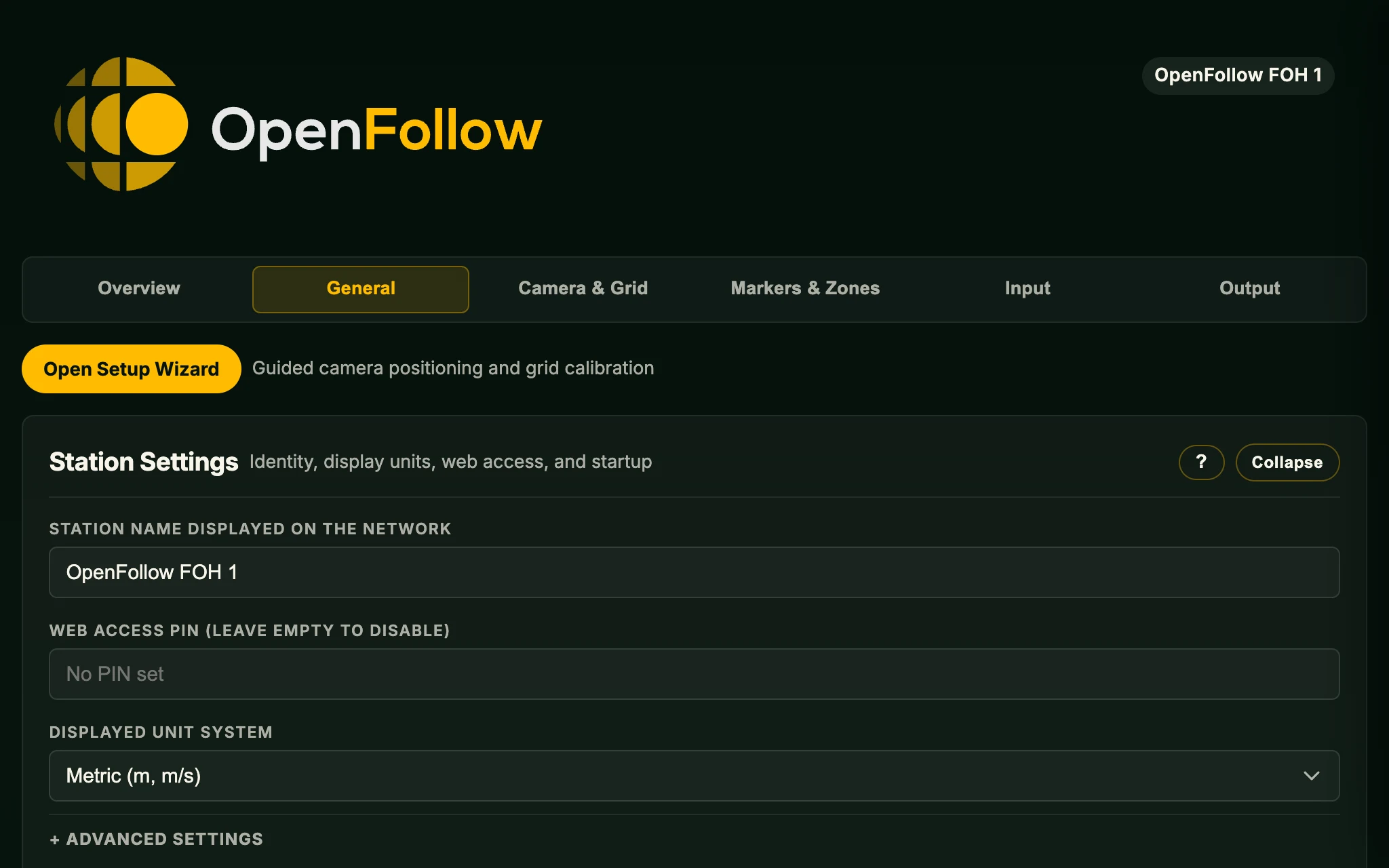
Header
The header carries the OpenFollow logo and the station name label. The Logout button appears when a Web access PIN is set.
Tabs
Six tabs, plus Person Detection while its feature is on. Every section has a help drawer with a plain-language description of its fields; it works offline.
Overview
Status & Diagnostics: Station Network, Video, This Station, Station network discovery and Person Detection boxes, power warnings, and the Bundle & tools buttons, including Restart application. See Status & Diagnostics.
General
Open Setup Wizard sits at the top; see Setup Wizard. Sections in order:
- Station Settings – Station name displayed on the network (also the PSN system name), Web access PIN (leave empty to disable) and Displayed unit system (Metric (m, m/s) or Imperial (ft / in, ft/s)). Units change only what the web interface and Operator Screen show and accept; every output protocol stays metric. Saving needs no restart. See Networking & Security.
- Station Settings → Advanced Settings – mDNS address (read-only), Custom domain name (FQDN), Autostart and the Features table.
- Network Interface Settings – per-adapter addressing (DHCP (automatic), DHCP with manual address, Static), Network mode Simple or Advanced, VLANs. Network Interface Assignment appears below it in Advanced mode and pins each function to an interface. See Networking & Security.
- Software Update – Install Latest Version Online and Install .ofupdate File. See Updating.
- Configuration Backup & Import.
Features
The table at the end of General → Station Settings → Advanced Settings has one row per feature. A change applies on Save. A Save that switches a feature off first lists what stops; Turn off saves, Cancel saves nothing. A feature that is off is hidden in the web interface and does not run; its settings are kept.
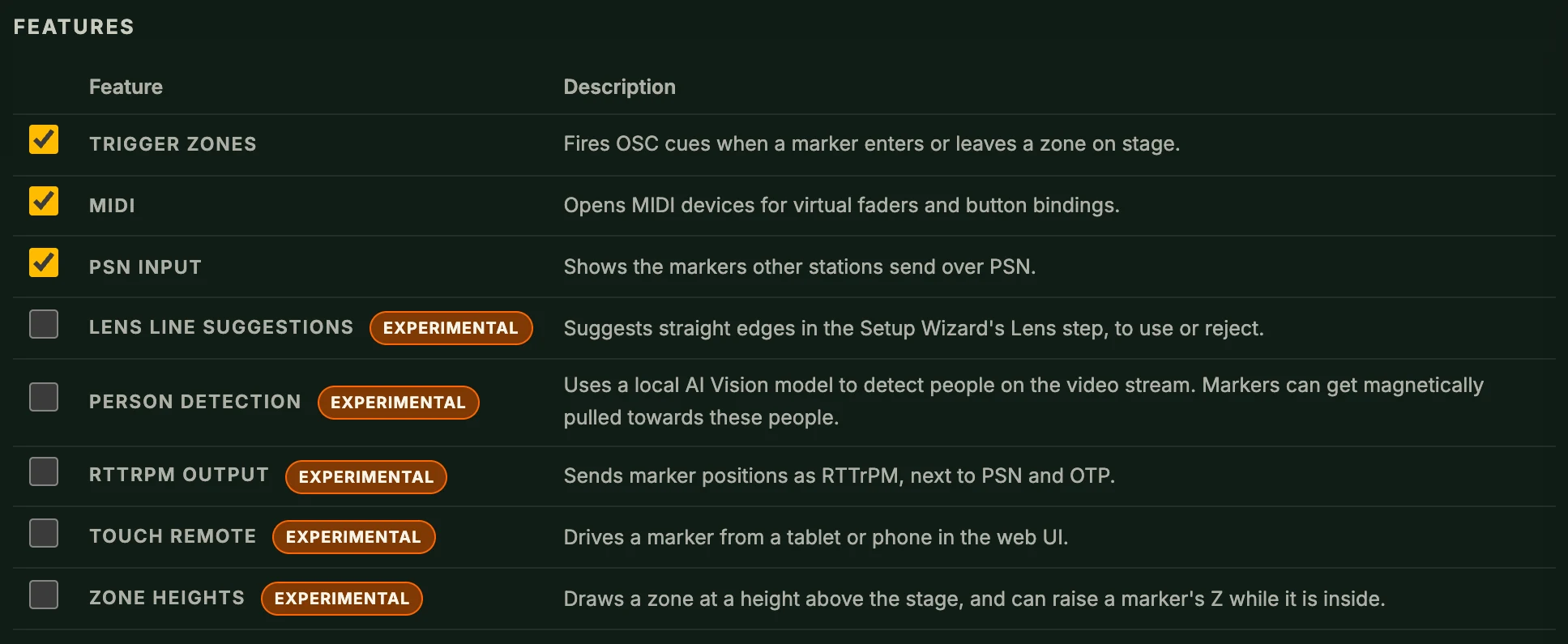
| Feature | Default | Controls |
|---|---|---|
| Trigger zones | On | Trigger Zones and Zone Editor sections, Toggle Zones bindings |
| MIDI | On | MIDI section and each virtual fader's MIDI source |
| PSN input | On | Receiving other stations' markers |
| Lens line suggestions Experimental | Off | Suggested lines in the Setup Wizard's Lens step |
| Person detection Experimental | Off | Person Detection tab |
| RTTrPM output Experimental | Off | RTTrPM Output section |
| Touch remote Experimental | Off | Touch Remote section |
| Zone heights Experimental | Off | Height fields of each zone in the Zone Editor |
Configuration Backup & Import
- Export Configuration – downloads every saved setting as a
.ofsettingsfile. - Import Configuration… – applies a
.ofsettingsfile from any OpenFollow station after a confirmation and a backup of the current settings. What connects this station stays: web login, port and interface, station identity, interface pins and labels, local file paths and marker move speeds. Show settings change at once; the update check, clock sync and network method take effect from the next start. - Restore Defaults – returns every setting to a fresh install's value after a confirmation and a backup, then restarts the station. Network access, station identity and local file paths stay; the shared marker catalog and uploaded media are untouched.
- Backups on this station – the station saves one before each update, import, restore and settings push; the ten newest are kept. Restore… brings one back and restarts the station. A backup made by a newer OpenFollow version cannot be restored. If a backup could not be made, the change still goes ahead and says so.
- Pushed settings – when another station sends its settings here, every web page and the Operator Screen show a warning listing each push: when, from which station and what it sent. The settings are already applied. Remove Warning acknowledges them everywhere; the Operator Screen's Settings menu has Remove Pushed Settings Warning. A push never changes a station's name, login, interface pins, OSC destinations or trigger zones.
Camera & Grid
Open Setup Wizard at the top, then:
- Video Source – source type and its fields. See Video Inputs.
- Camera & Lens Calibration – read-only: position, orientation, lens, and the last calibration's type, accuracy and points. The Setup Wizard sets every value. See Camera Calibration.
- Grid – size, spacing, offsets, appearance.
Markers & Zones
- Marker Control & Visibility – shared marker catalog and this station's This Station setting per marker. See 3D Markers.
- Marker Visuals – marker style (Crosshair or Cone) and appearance. See 3D Markers.
- Marker Movement – speed limits, default position, Control frame. See Controls.
- Trigger Zones and Zone Editor – see Zone Occupancy Detection.
Input
- Controller Slots – which controller holds which slot. See Controls.
- Gamepad Input, Keyboard Input, Mouse Input, 3D Mouse Input – see Controls.
- OSC Input – see Controls.
- Operator Messages – see Operator Messages.
- Touch Remote Experimental – see Controls.
- MIDI – patches, virtual faders, marker faders. See Hardware Inputs.
Output
- PSN Output – multicast IP and tracker status. The system name and network interface are read-only here.
- OTP Output Experimental – system number, port, priority.
- RTTrPM Output Experimental – host, port, send rate, context.
- OSC Destinations – named connections. See OSC Destinations.
- OSC Transmitters – messages and triggers. See OSC Transmitters.
Person Detection Experimental
Shown while Person detection is on in the Features table. Sections: Tracking, Detection Model, Sensitivity & Overlay. See Person Detection.
Saving and restarting
- Each section has its own Save. A saved section flashes green and applies at once; outputs rebind and video reconnects without a restart.
- A few settings, such as the keyboard layout and pinning the web interface to an interface, take effect after Restart OpenFollow, which restarts the app, not the operating system.
- Restart application is under Overview → Status & Diagnostics → Bundle & tools.
- A software update installs a newer release and restarts the service onto it.
Apply to all stations
Sends a section's settings to every OpenFollow station on the LAN. It appears on Camera & Lens Calibration and Grid only. Receiving stations show the pushed settings warning.
Templates
Save as template… and Load template… are on Camera & Grid, the Zone Editor and each OSC transmitter. The chooser can Export a template as a .oftemplate file and import one on another station.
Failed saves and confirmations
- A failed save flashes the section red and shows a Not saved. line with the reason. Nothing is applied.
- Actions that cannot be undone ask first in a dialog; the confirm button is red.