
Manual / Tracking
3D Markers
A marker is a tracked point in 3D space, identified by a numeric ID and a human-readable name. Markers are the unit of tracking that OpenFollow broadcasts on PSN, OTP, OSC, and RTTrPM. This chapter covers how to set them up, drive them, and reason about their IDs across multi-instance setups.
Marker IDs
Marker IDs are integers ≥ 1 – what the receiving show-control system sees. ID 0 is reserved as "ignored" on the PSN wire and is rejected on every write boundary (selection lists, OSC input, catalog edits).
Marker Control & Visibility
Markers & Zones → Marker Control & Visibility holds the shared catalog and what this station does with each marker.
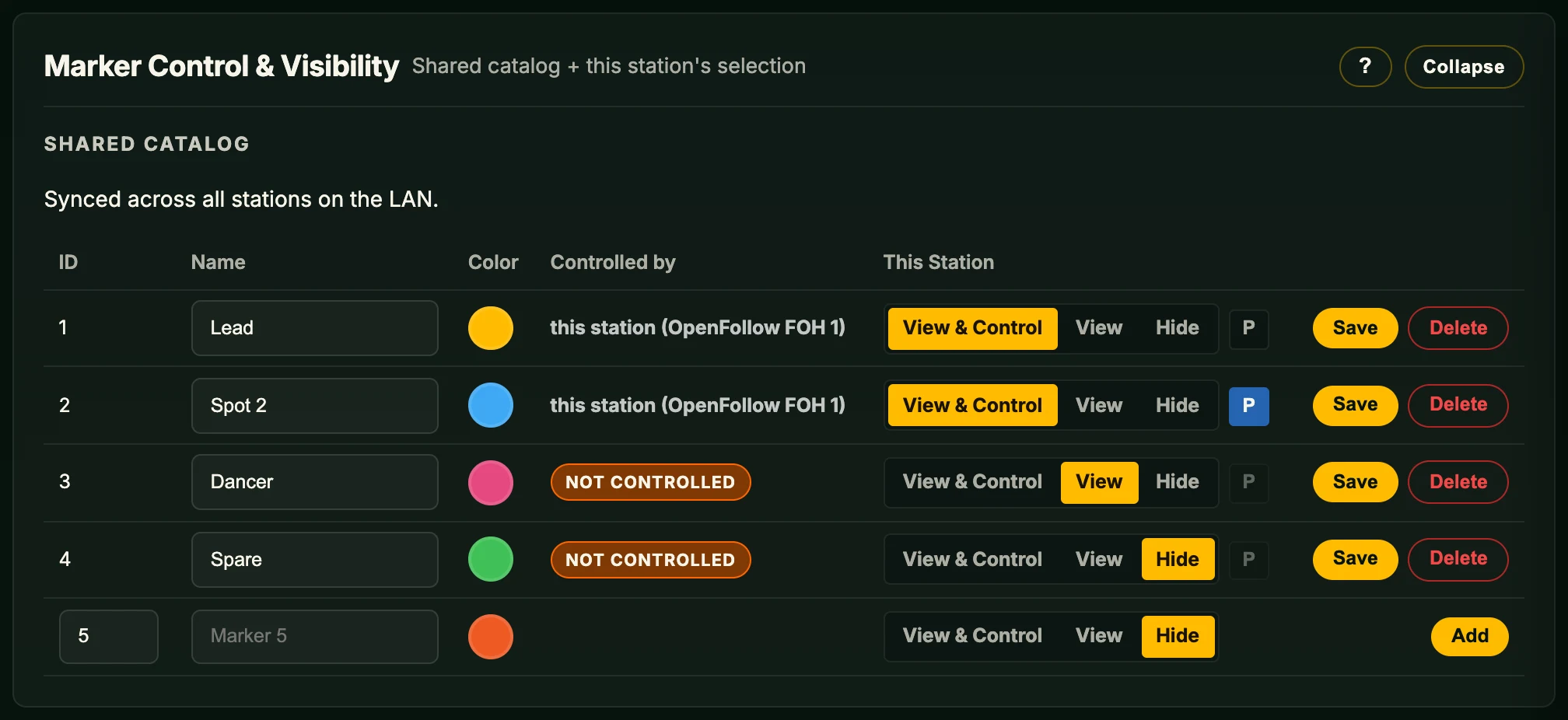
Shared catalog
Marker ID, name, and colour live in a catalog synced across every OpenFollow station on the LAN within a few seconds. The most recent edit to an entry wins; deletes propagate too. Deleting a marker another station has selected removes it from that station on the next sync.
| Column | Meaning |
|---|---|
| ID | The number receivers see on PSN, OSC, OTP and RTTrPM (integer ≥ 1). |
| Name | Label for the interface, up to 64 characters. Not sent on the PSN wire. |
| Color | The marker's swatch on the Operator Screen and web UI. |
| Controlled by | The stations currently claiming control. A red row with a Conflict label means more than one station controls the marker: each sends it on every output, so receivers see it jump. Not controlled means no station has it. |
| This Station | What this station does with the marker. A click saves it. |
Add a marker in the bottom row (ID, Name, Color, This Station, Add). The ID pre-fills with the next free integer; This Station starts at Hide. Each row has Save (name and colour) and Delete (from all stations, after a confirmation). A changed name or colour is outlined in blue, with an Unsaved chip, until Save; the catalog's synced values never replace it.
This Station
- View & Control – inputs routed to this station drive the marker, it is in this station's PSN broadcast, and its card shows on the Operator Screen.
- View – the card shows on the Operator Screen and the marker counts in the trigger zones, whichever station controls it.
- Hide – this station neither drives nor shows the marker.
- P – park, on View & Control rows only. See Parking.
The Operator Screen shows a red Control conflict status row and turns the marker's card red while a conflict stands.
Controllers follow the order markers were set to View & Control: C1 drives the first, C2 the second. A newly controlled marker takes the next slot; setting one back to View or Hide moves the ones after it up a slot.
View suits a station that should see markers driven by another – for example, two cameras on the same stage, each tracking its own marker but showing the other's as well.
Choosing a numbering scheme
- One performer per ID. Marker 1 is the lead vocalist, marker 2 is the support, etc. Easiest for static shows.
- One operator per ID. Marker 1 is whatever operator A is currently following; the cue list reroutes consoles to different markers as the show progresses. More flexible for festivals and one-offs.
Coordinate system
Marker positions are in PSN stage coordinates, in metres:
X– stage left (+) / stage right (−).Y– upstage (+) / downstage (−).Z– up (+) / down (−).
Receivers that expect another range or argument layout, such as ADM-OSC’s fractional coordinates, are handled by the matching OSC transmitter template; markers stay in stage metres.
Driving a marker
A marker set to View & Control can be driven by any combination of:
- A gamepad or 3D mouse, by controller slot (C1, C2 …).
- The keyboard.
- The mouse.
- The touch remote (experimental).
- Person detection (experimental).
- External OSC input. OSC positions apply only to markers this station controls.
Inputs are additive within a frame – a gamepad-driven marker still accepts an OSC position jump, for example. Last write wins per axis. See Gamepad, Keyboard & OSC.
Switch which marker the operator is driving with the Next / Prev Marker keys (default Tab for next, prev unbound; configurable in Input → Keyboard) or the assigned gamepad buttons (defaults: D-Pad Right / D-Pad Left).
Parking
The P control on a View & Control row parks the marker. A parked marker stays on every output at its position and keeps counting in the trigger zones. Keyboard, gamepads and 3D mice skip it; the 2D mouse, OSC and the touch remote still move it; person detection leaves it where it is. Its card carries a blue P. Setting the row to View or Hide unparks it. Parking survives a restart. Over OSC: /marker/<id>/park and /marker/<id>/unpark; see Controls → Parking a marker.
Marker visuals
How markers appear on the Operator Screen is set in Markers & Zones → Marker Visuals. Visuals apply to every marker this station renders and have no effect on PSN, OSC or any other output. Save writes them to disk.
Marker Style: Crosshair (default) or Cone. The other style's settings are kept for when you switch back.
Cone
A ring on the stage plane, a smaller ring at the marker's Z, and the edges joining them, in the marker's colour. Replaces the Body, Crosshair, Z Line and Ground Circle settings.
- Base Diameter – ring on the stage plane (default 0.6 m).
- Top Diameter – ring at the marker's Z (default 0.3 m); 0 gives a point.
- Line Thickness (px) – 1–10 (default 2).
- Cone fill – filled in the marker's colour or wireframe (default filled).
- Fill Opacity (0–1) – default 0.4.
- Shading – lights the filled side from the left so the cone reads as solid (default on).
Crosshair style
- Ball – a sphere at the marker position. Ball Size is the radius (default 0.15 m); Opacity (0–1) defaults to 0.3.
- Crosshair – a 2D cross pinned to the marker. Crosshair Size (arm length, default 0.3 m), Crosshair Thickness (px) and Crosshair Color (greyscale).
- Z Line – the line between the ground position and the ball. Z Line Thickness (px).
- Ground circle – a circle on the stage plane at the ground position. Circle Size (radius, default 0.3 m) and Circle fill (solid disc or outline).
Z readout
Show Z relative to the Reference Point shows Z as it is sent. Show Z relative to the grid subtracts the grid's Z Offset, so a marker on the stage floor reads 0.
Per-marker colour is set in the catalog row (see Shared catalog); the add-row picker suggests the first unused colour from a 20-entry palette.
Marker movement
Speed bounds and default position are in Markers & Zones → Marker Movement:
| Field | Meaning |
|---|---|
| Min Speed | Lowest selectable speed (m/s). |
| Max Speed | Highest selectable speed (m/s). |
| Default Speed | Speed on app start, applied to any marker without its own override. |
| Default X / Y / Z | Position the marker resets to (e.g. on Reset Marker keypress). |
| Control frame | Direction the gamepad, keyboard and 3D mouse steer in: Stage axes (default), Fixed heading, Camera heading or Screen. |
| Heading (°) | Bearing for Fixed heading; 0 looks upstage, 180 looks back at the audience. |
Each marker keeps its own live speed, so two operators on two gamepads adjust their own speed independently. Left Bumper / Right Bumper on a pad writes to the marker that pad is routed to; keyboard R/T writes to the active marker. Streak detection (consecutive presses raise the step size) stays global. Gamepad stick input scales with deflection; keyboard movement is fixed-rate. Control frame is described in Controls → Control frame.
Resetting a marker
Press the configured Reset key/button (default X on keyboard, X button on the gamepad) to snap the active marker to its Default X/Y/Z position. Useful when a marker drifts off-screen or you need a clean starting position before a cue.
Position jumps via OSC
An OSC sender on the LAN can move a marker by sending one of:
/marker/<id>     x  y  z       # full triple, all three axes
/marker/<id>/x   v             # set X only
/marker/<id>/y   v             # set Y only
/marker/<id>/z   v             # set Z only
/marker/<id>/park             # park the marker
/marker/<id>/unpark           # unpark the marker
Positions apply only to markers this station controls. Park and unpark apply to markers set to View & Control.
Coordinates are absolute, in metres, in the same PSN frame the rest of OpenFollow uses. See Controls → OSC input for the full settings and sender examples.
The OSC input port (default 8765) and the IP allowlist live in Input → OSC Input. Without an allowlist, any device on the LAN can hijack marker positions – see Networking & Security.
Use cases
- Cue presets. Hard-code a marker to a stage position from your cue list – "marker 1 to (3, 5, 1.6) before scene 4".
- Chained instances. An upstream OpenFollow instance broadcasts a marker; a downstream instance picks it up and re-sends in a different output protocol.
- Console-driven tracking. A console with computed encoder positions drives an OpenFollow marker that other systems then react to.
Marker output
What gets broadcast for each marker is configured in the Output tab. By default:
- PSN sends every controlled marker at the data fps (default 60 Hz).
- OTP / RTTrPM (RTTrPM is experimental) are off by default; enable per the relevant section.
- OSC outputs are configured per-transmitter – each transmitter picks its source markers (the transmitter’s Default markers) and a named destination, plus its own message template and trigger. A single marker can drive any number of OSC transmitters.
See Output Protocols and OSC Transmitters.