
Manual / Tracking
Hardware Inputs
Hardware Inputs feeds MIDI controllers and fader-style controls into OpenFollow. Once configured here, those signals drive OSC Transmitters via the MIDI message / Fader on change triggers and matching placeholders.
Everything lives under Input → MIDI: MIDI Patches, the virtual fader bus, and the read-only marker faders. The section is available while MIDI is on under General → Station Settings → Advanced Settings → Features (on by default); with it off, no MIDI device is opened. Pair this chapter with Gamepad, Keyboard & OSC for the operator-facing marker inputs.
MIDI Patches
A patch is a stable, integer-ID'd slot you assign a connected MIDI device to – the same idea as a QLab MIDI patch. The patch ID is the foreign key everything else references (OSC transmitter triggers, virtual fader sources), not the OS port name or the optional alias. IDs are assigned sequentially on Add and stay put across reboots and device swaps.
Adding a patch
- Connect the MIDI controller (USB or USB-MIDI to 5-pin DIN).
- Click Add new MIDI Patch. The patch gets the next free ID.
- Pick the device from the Device dropdown of connected ports, optionally set an Alias (e.g.
FOH,X-Touch), and Save the row.
Each row saves and deletes independently. A patch whose device is unplugged keeps its binding – the device shows (not connected) and re-saving preserves it.
Patch fields
| Field | Meaning |
|---|---|
| ID | The patch's stable integer key. Read-only; assigned on Add. 0 is reserved as the "any patch" wildcard, so a real patch is always ≥ 1. |
| Alias | Optional friendly name (max 64 chars). Shown in patch dropdowns alongside the ID. |
| Device | The connected MIDI input port bound to this patch. An unplugged device shows as (not connected). On Linux, a device with a USB serial number shows it after the port name and the patch follows that unit, so two controllers of the same model each keep their own patch. |
Virtual fader bus
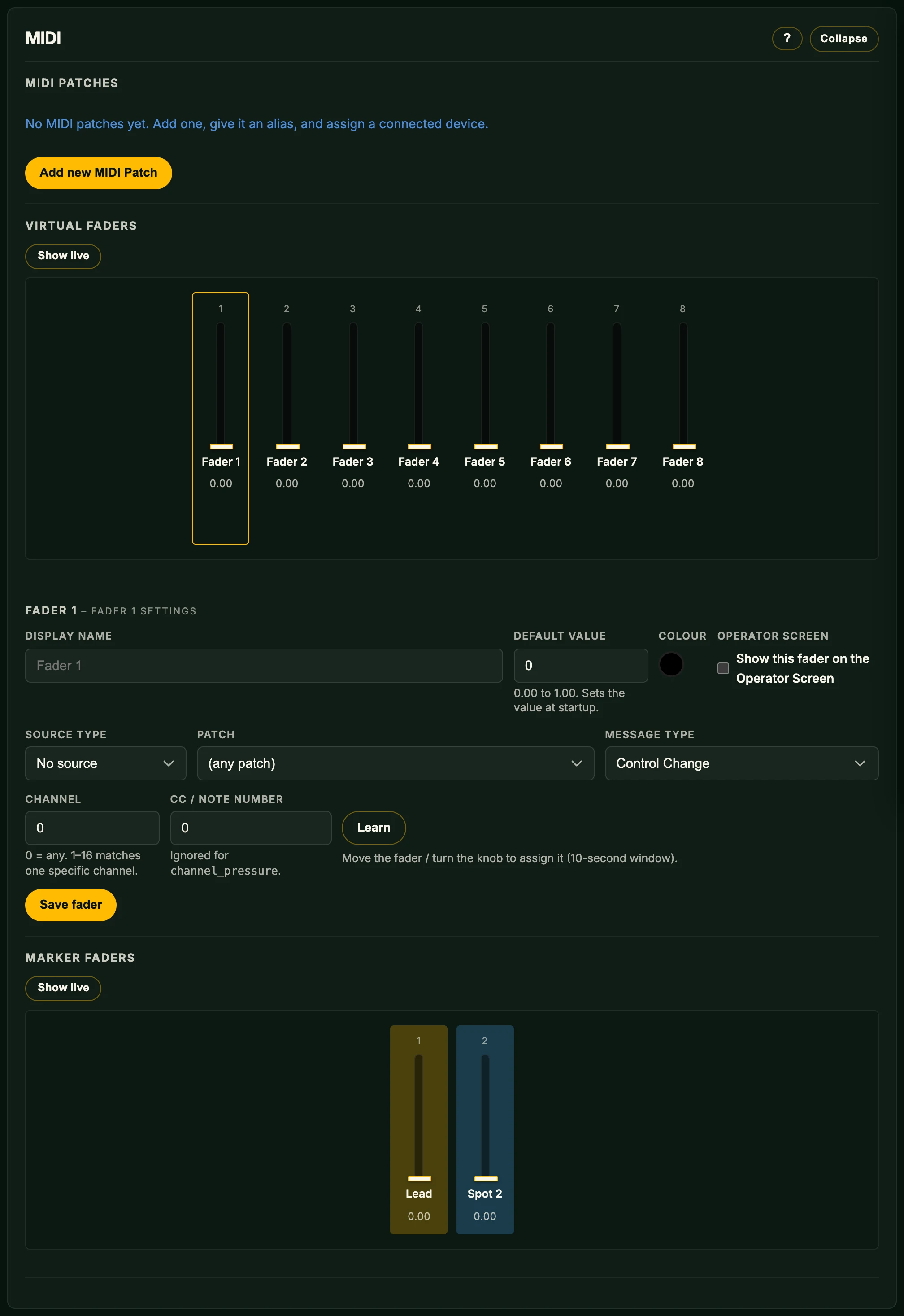
The virtual fader bus exposes eight normalised 0.0 – 1.0 values, addressed by their position on the bus (1 through 8). Each fader carries an operator-set display name that defaults to "Fader 1", "Fader 2", etc.; OSC transmitters reference a fader by its index. The bus is fixed at eight faders – you can't add or delete entries.
Configuring a fader
Open Input → MIDI → Virtual Faders and click a strip to load its editor. Each fader takes:
| Field | Meaning |
|---|---|
| Display name | Shown on the Operator Screen and in trigger forms that reference this fader. Max 32 chars. |
| Default value | 0.00 – 1.00. The fader's value at startup. |
| Colour | Swatch that tints the fader strip. |
| Operator Screen | Show this fader on the Operator Screen. |
| Source Type | No source (the fader sits at its default value) or MIDI. |
The strips show the values as they were when the page opened. Show live follows them for 10 seconds, then stops by itself; Stop live ends it sooner. A strip marked not picked up is a MIDI fader whose physical control has not yet met the fader's value: moving the control changes nothing until it crosses that value.
With Source Type → MIDI, pick the Patch (or any patch), the Message Type (Control Change, Key Pressure, or Channel Pressure), the Channel (0 = any, 1–16 for one channel), and the CC / Note number. Or click Learn and move the control – the next message it sends (10-second window) fills the patch / type / channel / number for you. Save the fader; its live value appears in the strip and is immediately available to OSC transmitters.
Marker faders
The Marker Faders group under Input → MIDI is a read-only readout – one fader per controlled marker, driven by whichever gamepad currently controls that marker. They're auto-provisioned from the controlled markers, not configured here. Send a marker's fader value with the OSC [markerfader] placeholder.
Which gamepad stick axis feeds the marker faders, and how fast it travels, is set under Input → Gamepad: Marker fader stick (Left Stick Y or Right Stick Y) and Marker fader speed (s), the time for a full sweep at full deflection. A 3D mouse axis set to Fader drives it too.
Operator Screen status indicator
The on-screen overlay carries a small status indicator in the top-right corner that surfaces subsystem health – one row per active condition. MIDI conditions appear here, e.g. a patch whose bound device isn't connected, or MIDI being unavailable on the host. No active condition means the indicator is empty.
Where this connects
- OSC Transmitters → MIDI message trigger – fire OSC on a note / CC / program change matched against a MIDI patch.
- OSC Transmitters → Fader / event placeholders – read a virtual fader or marker fader into an OSC argument.
- Gamepad, Keyboard & OSC – the operator-facing inputs that move markers directly. Hardware Inputs sit alongside, focused on signals that drive OSC rather than markers.