
Manual / Setup
Video Inputs
OpenFollow accepts video over network protocols and direct connections. Pick whichever gives you the lowest stable latency at 720p–1080p, 25–30 fps.
Sources are configured under Camera & Grid → Video Source in the web UI (or step 1 of the Setup Wizard) with Source Type. Changes apply within about a second of saving; markers and PSN keep running.
Video above Full HD or 30 fps is flagged with a red box and still plays, but the picture or markers may lag. Use 1080p or 720p at 25–30 fps.
Choosing a source
| Source | When to use it | Latency |
|---|---|---|
| RTSP Recommended | Most IP cameras, HDMI/SDI-to-IP encoders | 2–3 frames (professional cameras) |
| SRT | If you have no other options and an unreliable network | 2–3 frames (professional cameras) |
| RTP | Tightly-controlled local pipelines you generate yourself | Varies widely; can be very low |
| NDI® 1 2 | NDI®-native cameras and software sources | Typically 5–7 frames |
| Pi Camera | Pi Camera modules, CSI capture adapters | Lowest overall (no network) |
| USB Camera | UVC webcams, USB capture cards | Varies by vendor |
| Media Gallery | Bench testing without a camera; play a stored still or clip | n/a |
RTSP
Field: RTSP URL, e.g.
rtsp://192.168.178.58:554/stream/mainFor cameras that require a login, fill in Username (optional) and Password (optional). Type the password as it is; @ and : are fine. These override credentials written into the URL.
This is the usual reason a URL that plays in VLC stays disconnected here: a player prompts for the login and remembers it. See Troubleshooting → RTSP stream plays in VLC but not in OpenFollow.
Recommended camera settings
- Resolution: 1920×1080 or 1280×720.
- Frame rate: 25 or 30 fps.
- Encoding: H.264 baseline or main profile. H.265 decodes in software on a Raspberry Pi, about 0.6 of a Pi 5 core at 1080p30.
- Bitrate: CBR, 4–8 Mbps.
- I-frame interval: 1× framerate (one I-frame per second). Lower means faster pipeline recovery on packet loss but more bandwidth.
- Disable the camera’s “smart” features – motion detection, IR cut, auto-exposure flicker, perspective correction.
SRT
Fields: SRT URL and Passphrase (optional) – the encryption key, when the sender encrypts; it overrides a passphrase in the URL. Examples:
srt://0.0.0.0:5000          # listener mode
srt://203.0.113.10:5000     # caller mode
RTP
For RTP, you usually generate the stream yourself with FFmpeg, GStreamer, or a hardware encoder you control.
Fields: RTP URL and Encoding (H264, H265 or MP2T, matching the sender). Default URL form:
rtp://0.0.0.0:5004NDI®
NDI® input requires the closed-source NDI® SDK and the GStreamer NDI® plugin to be installed on the Pi separately – see Installing NDI®.
Once installed, set Source Type to NDI®. The NDI® Source dropdown lists the visible sources on the network; pick one.
Raspberry Pi Camera (CSI)
Source Type Pi Camera: camera modules and HDMI/SDI-to-CSI adapters on the ribbon-cable port.
Fields:
- Camera – the camera in use (default First camera found); with more than one connected, the one to stream.
- Width / Height / FPS – defaults
1920 × 1080 @ 30 fps. - Change – names the Camera module and Connector. Automatic leaves it to the Pi, which never recognises a camera on a Compute Module. A camera the station booted with changes at the next restart.
USB Camera
UVC webcams and USB capture cards (HDMI/SDI-to-USB).
Fields:
- Device – the capture device; Scan looks for cameras again.
- Render resolution – 2160p, 1080p (default) or 720p scale the picture down for lower CPU; Native size keeps the largest size the camera offers.
- FPS – default
30.
A camera with a different shape from the render size, such as 4:3 at 1080p, keeps its shape with black bars. A capture card reads the incoming signal's resolution. USB capture is processing-heavy: on a Raspberry Pi, keep the render resolution at 1080p rather than Native size for a 4K source. Capture-card latency varies by vendor.
Media Gallery
Stored pictures and clips, used as the video source when no camera is connected. Four items are built in and cannot be deleted:
- Stage – a theatre-stage scene with a 10 × 6 m grid.
- Concert – a taped 12 × 6 m grid, seen from the upstage back truss.
- Festival – a taped 12 × 6 m grid, seen from the front truss.
- Grey – a plain grey card.
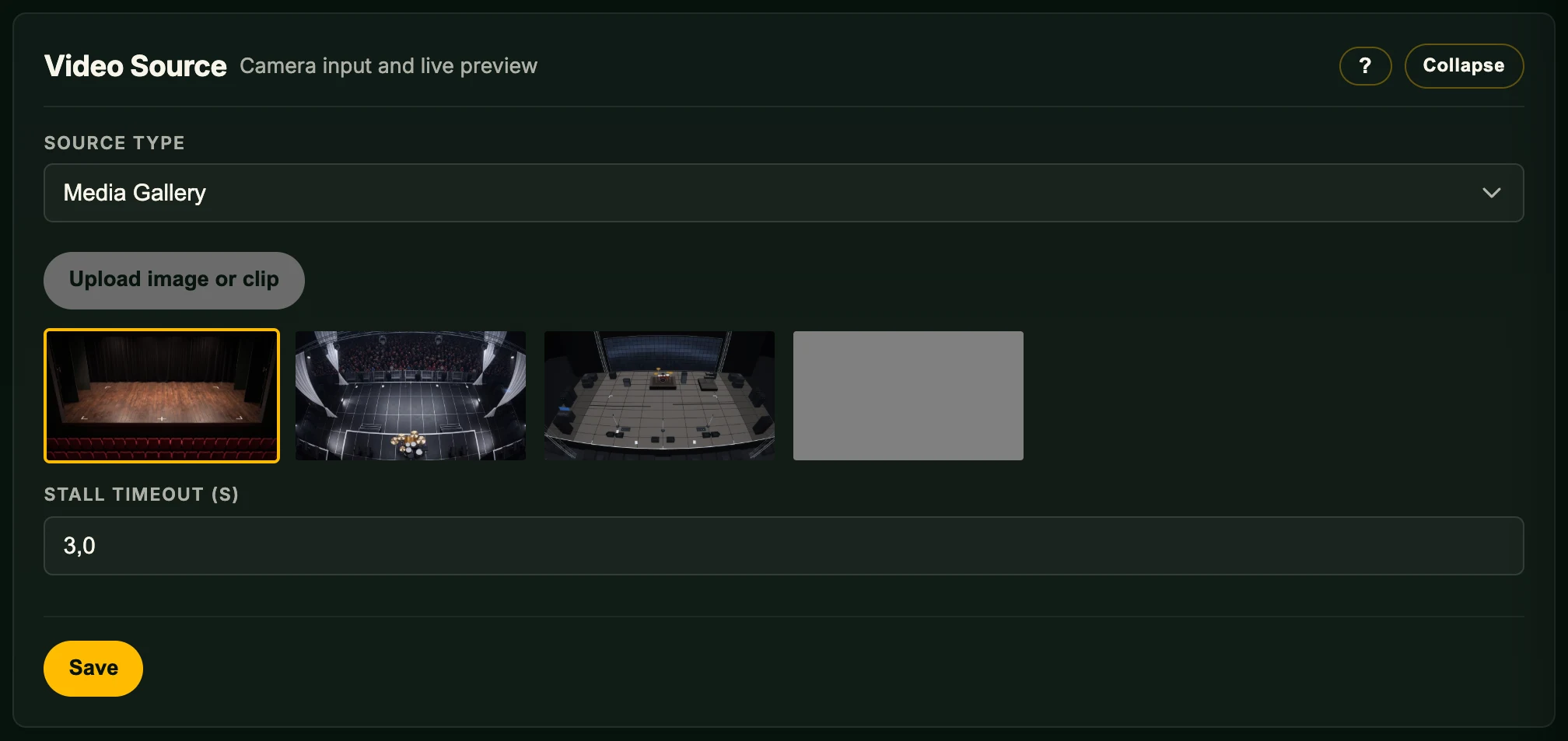
In Stage, Concert and Festival the Reference Point is the middle of the grid’s downstage edge.
Manage the gallery under Camera & Grid → Video Source. Click a tile to make it the source; the selected tile carries an amber border. If the current selection stops resolving – its media was deleted, or a config imported from another station points at media this station doesn't have – the source falls back to Stage.
Adding media
- Upload image or clip – JPEG / PNG / WebP stills, or VP8 WebM clips (up to Full HD, 30 fps, 60 s; audio is ignored). Other codecs are refused. The gallery holds up to 100 items / 1 GiB. Per-tile buttons download or delete media you added.
- Capture frame to gallery – shown while any live source is active; saves the current clean frame at its native resolution. Use it to grab a still of your actual stage to calibrate against later.
Clips are not transcoded on the device, so prepare a conforming VP8 WebM on a workstation first, for example:
ffmpeg -i in.mp4 \
  -vf "scale='min(1920,iw)':'min(1080,ih)':force_original_aspect_ratio=decrease,fps=30" \
  -t 60 -an -c:v libvpx -b:v 6M -crf 10 out.webm
The gallery is device-local: it stays on the station you set it on and never travels with a config export or import. The on-display Settings menu can select the Media Gallery as the source but not change its contents.
Switching sources while running
If a network camera disconnects mid-show, OpenFollow shows a connection-status overlay and reconnects automatically when it’s available again. Two timers under Connection recovery (below the source fields) apply live:
- Stall Timeout (s) – a feed that delivers no frame for this long is rebuilt. Default
3.0;0disables it. - Heal Interval (s) – how often a network feed showing “No Signal” is retried. RTSP, SRT and RTP only. Default
5.0;0disables it.
To force a reconnect without waiting, re-save the active source’s URL unchanged. A failed rebuild shows a banner and rolls the field back.
Preview
The Preview checkbox shows a snapshot of the input, refreshed every two seconds.
Camera Latency
Measure latency times the round trip through the camera, which must point at the Operator Screen. The screen flashes black and white and shows no video or markers meanwhile, which can trigger seizures: never run it during a show. The result is green below 120 ms, amber up to 250 ms, red above.
Latency in practice
End-to-end latency = camera capture → encode → transport → decode → render. The capture+encode buffer in the camera dominates: live-broadcast IP cameras run ~100 ms; surveillance cameras 300–800 ms. Measure your own with Camera Latency.
1. NDI® is a registered trademark of Vizrt NDI AB.
2. OpenFollow does not contain any NDI® code by itself. NDI® requires closed source NDI® Tools / NDI® SDK on the host system that need to be installed separately.